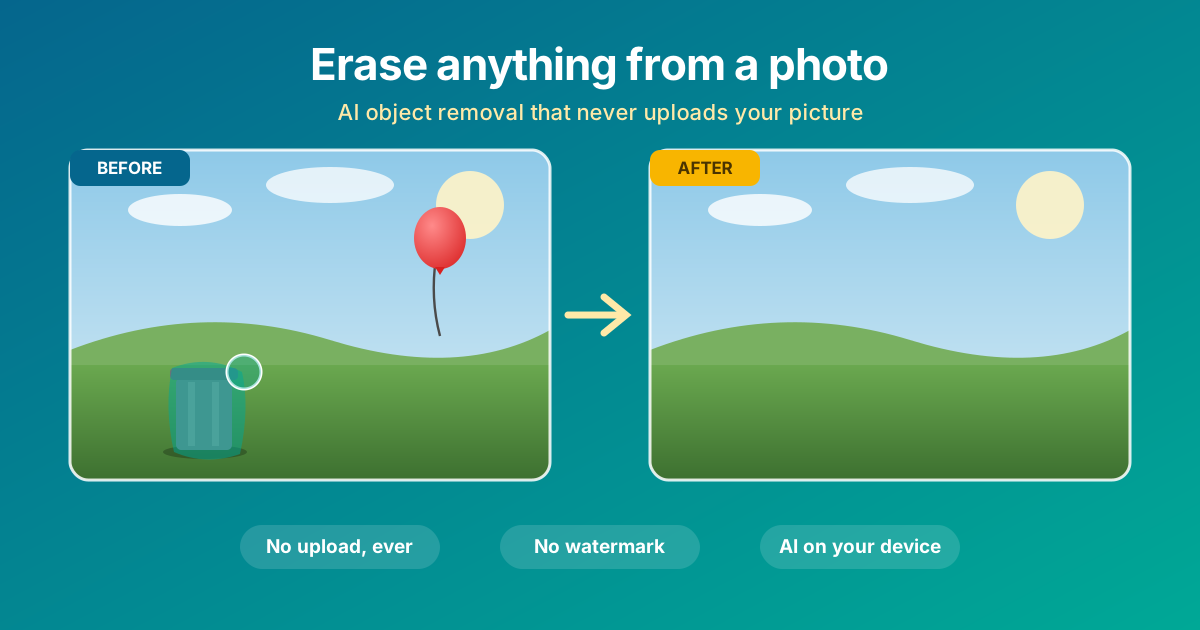
Every camera roll has them: the almost-perfect photos. The beach shot with a stranger mid-frame. The house photo with a garbage bin by the door. The one great picture of your kid with a juice stain on the couch behind them. The AI Object Remover at The Dollar Web fixes these in seconds, in your browser, for free, and your photo never leaves your device.
What "removing an object" actually means
You cannot just delete pixels from a photo. If you erase the trash can, something has to go where the trash can was, and that something needs to look like it was always there: the fence continuing behind it, the grass, the shadow pattern of the tree above it.
The technique that solves this is called inpainting. An AI model looks at everything around your selection and predicts what the covered area most plausibly looked like, then paints that prediction in at full resolution. When it works, and on typical backgrounds it works remarkably well, there is no smudge, no blur patch, and no clone-stamp repetition. The object is simply gone.
This used to be a Photoshop skill. The content-aware fill tools that made it approachable live inside a subscription most people do not have, and the web apps that copied the idea almost all route your photo through their servers. That second part is what this tool was built to avoid.
Who reaches for this
- Anyone with vacation photos. Strangers, photobombers, and other people's beach umbrellas are the classic case. It is the most requested photo fix after background removal.
- Home sellers and landlords. Listing photos read dramatically cleaner without bins, hoses, cars in the driveway, and clutter on counters.
- Marketplace sellers. The product looks better without the pile of laundry behind it.
- Landscape photographers. Power lines, poles, and distant signs are exactly the thin, texture-backed objects inpainting erases best.
- Anyone with a date stamp or burned-in text on an old digitized photo.
The catch with most object removal apps
Search "remove object from photo" and you will find a wall of tools that follow the same script: upload your photo, get a low-resolution preview, then hit a paywall, a watermark, or a credit meter when you want the real file. And quietly, in every case, your photo made a trip to someone's server to be processed, and possibly retained.
Typical online magic eraser
- Uploads your photo to a server
- Free tier is low resolution or watermarked
- Credit packs or a subscription for full quality
- Your photo may be stored "to improve the service"
- Stops working without a fast connection
The Dollar Web's AI Object Remover
- The AI runs entirely in your browser
- Full original resolution out, no watermark
- Free, no account, no credit meter
- Your photo never leaves your device
- Works offline once the model is cached
The reason this can be free is the same reason it is private: there is no server doing the work, so there is no per-photo cost to recover. The AI model downloads to your browser and your own computer does the math. We wrote about how browsers got powerful enough for this in our post on client-side processing.
How to remove an object, step by step
Open the AI Object Remover. If you just want to feel how it works before digging out a real photo, click "Try a sample image" and erase the trash can it comes with.
- Drop in a photo (JPG, PNG, or WebP), paste one from your clipboard with Ctrl+V, or tap "Choose a photo" on your phone. The moment a photo loads, the AI model starts downloading in the background with a progress bar. It is about 27 MB, it happens once, and your browser keeps it cached from then on.
- Paint over the object. Drag the brush across whatever you want gone. The teal highlight shows exactly what the AI will replace. Use the slider to size the brush, and zoom in with the buttons, your mouse wheel, or a pinch on your phone for precise work. Missed a spot? Keep painting. Painted too much? Undo the stroke or clear the selection.
- Cover the shadow too. This is the single most important habit. An object's shadow and reflection are part of the object. If you erase a person but leave their shadow on the sand, the photo will look haunted rather than clean.
- Click "Remove selected." The model reconstructs the background in a couple of seconds. The cleaned photo becomes your new working image, so you can immediately paint over the next object and go again.
- Check your work. Press and hold "Hold to compare" to flash back to the original. If a removal did not land, undo it and try a tighter selection or two smaller passes.
- Download. PNG for maximum quality, JPG for a smaller file, and on phones the "Save to Photos" button sends the result straight to your camera roll through the share sheet. No watermark on any of them.
The three habits that make removals invisible
1. Erase big things in small passes
The model predicts the hidden background from the visible background around it. One enormous selection leaves it very little real information to work from, and the fill gets soft and vague in the middle. Two or three smaller passes, working inward, give every pass real texture to anchor on. This is the difference between "wait, there was a person there?" and "something got smudged out here."
2. Keep the brush tight
Cover the whole object, but do not bury half the scene in the process. Every pixel you paint is a pixel the AI has to invent, and every pixel you leave unpainted is evidence it can learn from. Zoom in, take the extra ten seconds, and trace the object rather than swiping a giant blob over the general area.
3. Respect the background's difficulty
Texture is easy; structure is hard. Sky, grass, sand, water, pavement, foliage, and walls fill in almost perfectly, which is why power lines against a sunset vanish like they were never built. Backgrounds with precise geometry are harder: brickwork that must stay aligned, legible signage, a crowd of faces. The model will attempt them, and smaller selections help, but if the thing behind your object is a sentence of text, no inpainting model can know what it said.
What is actually happening under the hood
The tool runs MI-GAN, an inpainting model published at the ICCV 2023 computer vision conference by Picsart AI Research and released under the MIT license. It was designed for phones, which is exactly what makes it right for a browser: small enough to download once, fast enough to fill a selection in a couple of seconds on an ordinary laptop's CPU.
When you click remove, the pipeline crops in around your selection, reconstructs the masked area at high quality, and blends the patch back into the full-resolution photo. That crop-and-blend trick is why even large photos keep their original sharpness everywhere outside the edit, and it is also why several small selections beat one huge one: each crop stays tight and detailed.
All of it executes through WebAssembly inside the page you are looking at. You can load the tool, turn on airplane mode, and keep erasing. There is no server in the loop to be slow, to charge you, or to keep a copy.
Good pairings once the object is gone
- Old photo that is also small or blurry? Run the cleaned result through the AI Image Upscaler next; the two tools share the same on-device philosophy.
- Want the subject on a clean backdrop instead of a cleaned-up scene? That is the Background Remover's job: it cuts the subject out rather than erasing things around it.
- Reframe after the edit with the Image Cropper, especially if the removed object sat near an edge.
- Shrink the final file for a listing or an email with the Image Compressor.
All of these live on our image tools page, and every one follows the same rule: your photo stays on your device.
A note on photos you would never upload
Think about the photos people most want to clean up. Family pictures. Kids. The inside of your home for a rental listing. A screenshot with a name and address you want to blot out. These are precisely the images that should not be sitting in an unknown company's storage bucket because you wanted a trash can gone.
The trust strip at the top of the tool says your photos never leave your device, and that is not marketing shorthand. It is a description of the architecture. The model comes to your browser; your photo goes nowhere. If you would like the deeper technical story, the client-side processing post walks through it in plain English.
Try the AI Object Remover
Paint over anything. Watch it disappear. Your photo never leaves your device.
Open the AI Object Remover Browse All Image ToolsCommon questions
What is a good free alternative to Magic Eraser or Cleanup.Pictures?
One that runs the AI on your own device instead of a paid server, because server costs are the reason for watermarks, resolution caps, and credit packs. The Dollar Web's AI Object Remover downloads the inpainting model to your browser once and every edit after that is free, full resolution, and private.
Can I remove a person from a photo without the edit being obvious?
Usually, yes. The two habits that matter most: cover the person's shadow and reflection along with the person, and remove large subjects in two or three smaller passes instead of one giant selection. Then press and hold the compare button to check the result against the original before downloading.
Does AI object removal work on phones?
Yes. Pinch to zoom in for precise brush work, paint with your finger, and a removal takes a few seconds. When you are done, the Save to Photos button sends the cleaned image straight to your camera roll through the share sheet.
Why does the tool download about 27 MB the first time?
That download is the AI model itself, arriving in your browser so your photo never has to travel the other way. It happens once, only after you pick a photo, and your browser caches it. From then on the tool starts instantly and even keeps working offline.
What photos does AI object removal struggle with?
Backgrounds with precise structure: legible text, faces, brickwork that must line up, or a crowd behind the object. The model predicts what was hidden, and prediction is easiest for texture like sky, grass, sand, water, and walls. For structured backgrounds, smaller selections and multiple passes help a lot.