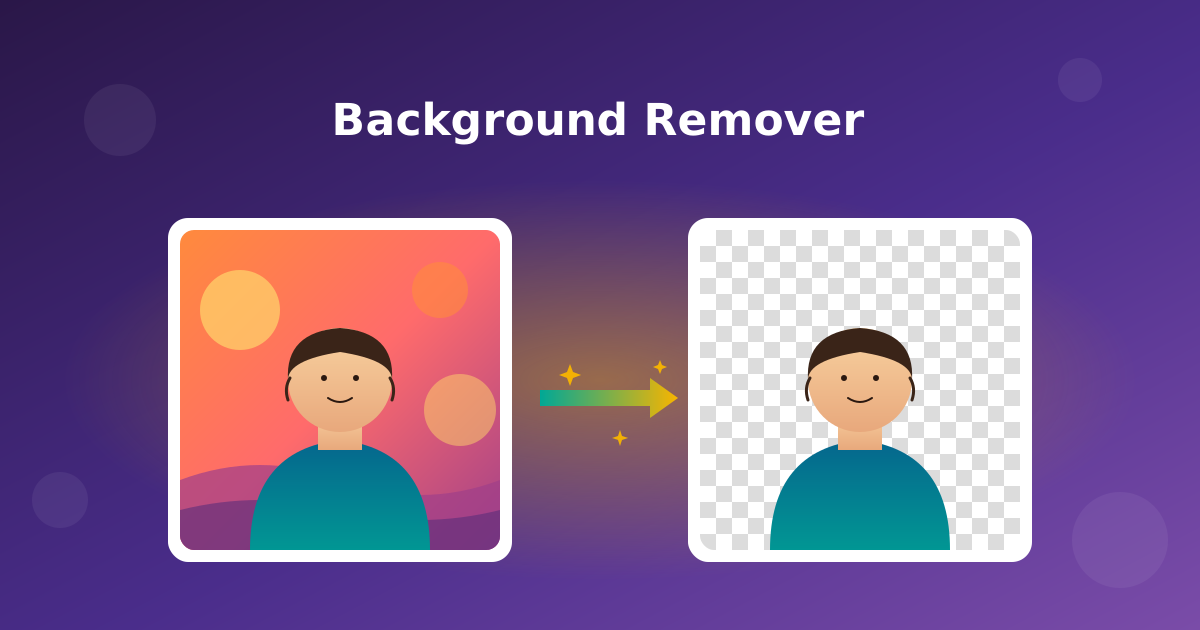
If you've ever needed a clean cutout of a person, a product, or a logo and ended up paying $9.99 to get a usable result without a watermark, this article is for you. The Background Remover at The Dollar Web does the same job, in seconds, in your browser, for nothing.
What "removing the background" actually means
When most photo formats save an image, every pixel is opaque. That's why if you cut out the front and paste it onto a new design, the rectangle of leftover background comes with it. To make a clean cutout, you need an image with a fourth color channel, called alpha, that tells software which pixels are visible and which are see-through.
That format is the transparent PNG. When you "remove the background," you're really doing two things at once: figuring out which pixels belong to the subject and which belong to the backdrop, and saving a PNG where the backdrop pixels are marked invisible. The result drops onto any new background cleanly, no rectangle, no halo.
Who actually needs this
Background removal is one of the most-searched photo tasks on the internet for a reason. It powers a huge share of everyday creative work:
- E-commerce sellers who need product shots on a clean white background for Amazon, Shopify, eBay, or Etsy.
- Designers building social posts, mockups, and presentations who want subjects floating without their original setting.
- Job seekers putting together a polished headshot for LinkedIn or a resume.
- Real estate agents isolating a logo, agent photo, or property highlight for a flyer.
- Teachers and students assembling slide decks where photos need to feel like part of the design instead of pasted-in screenshots.
- Anyone making a meme, which, as it turns out, is most of us.
Why most online background removers feel like a trap
The popular paid services almost all follow the same playbook. You drop in a photo. They upload it to their servers. They give you a free preview at low resolution, then ask for a credit card to download the high-quality version. Every photo you process is one credit. Bigger files cost more. The free tier limits you to a few a month, and "free" usually means a watermark slapped across the corner.
Typical paid online tool
- Uploads your image to a server
- Watermarks the free preview
- Charges per image or per month
- Limits resolution unless you upgrade
- Stores your photo "for service improvement"
The Dollar Web's Background Remover
- Runs entirely in your browser
- No watermark, ever
- Free, with no account required
- Full original resolution out
- Your image never leaves your device
The reason the Dollar Web version can do this is the topic of a previous post about client-side processing: the AI model that figures out which pixels are foreground runs inside your browser, on your own machine, instead of in someone's data center. There's no upload to monetize.
How to remove a background, step by step
Open the Background Remover. The tool has one screen, no menus, and no settings to wrestle with.
- Drop your photo into the dropzone, or click "Choose an image" and pick a JPG, PNG, or WebP from your device. Up to about 4096 by 4096 pixels works smoothly. Bigger images still work, they just take a few extra seconds.
- Wait for the AI to do its thing. The first time you use the tool, your browser downloads the model file. After that, runs are nearly instant because the model is cached. You'll see "Original" on the left and the cutout appearing on the right.
- Pick a background, or leave it transparent. Below the result, you'll see a row of color swatches: transparent (the default), white, black, teal, gold, deep blue, coral, plus a custom color picker. White is the standard for product photography. Transparent is what you want if you're going to drop the cutout into a design.
- Hit Download PNG. You get the full-resolution result, no watermark, no resizing, no trial credit deducted.
- Process another, if you need to. Click "Remove another" and repeat. The model is already loaded, so this run will be much faster than the first.
Tips for getting clean cutouts the first time
The AI is good, but the source photo matters. A few things help it produce edge-perfect results:
Aim for good contrast between subject and background
A dark person against a light wall, or a light product against a dark backdrop, gives the model clear edges to work with. A black cat on a black couch is hard for any tool, including this one. If you control the shoot, give yourself one stop of separation between subject and surroundings.
Watch out for transparent or semi-transparent objects
Glass, ice, plastic bottles with logos, and netting are genuinely hard. The model has to decide whether the background showing through belongs to the subject or to the backdrop. Sometimes the cleanest fix is a slightly different angle that puts a solid surface behind the transparent part.
Hair, fur, and feathers usually look great
This is where AI-based removers shine compared to the old "magic wand" tools in image editors. Wispy hair against a clean backdrop will come out with believable edges. Hair against a busy, similar-toned background is the hardest case, so a half-second of consideration before you snap the photo pays off.
Bigger images give better edges, up to a point
The model has more pixels to look at, so a 3000-pixel-wide photo will have a noticeably crisper cutout than a 600-pixel one. Past about 4000 pixels, you stop gaining quality and start spending more time on processing. Resize before you upload if your phone produced a 12000-pixel beast.
JPGs from group chats are the worst case
An image that's been compressed and re-saved a dozen times has soft, blocky edges to begin with. The AI does the best it can, but you'll get a better result starting from the original photo than from a screenshot of a screenshot.
What to do once the background is gone
A transparent PNG is the most flexible image format you can have. Some of the things you can do with it:
- Drop it onto any background in Canva, PowerPoint, Google Slides, Keynote, Figma, or any photo editor. The cutout obeys the layer beneath it instead of carrying its old background along.
- Save a clean white-background version for online stores. In the Background Remover, click the white swatch before downloading. You'll get a product shot Amazon and Shopify will accept without complaint.
- Build a thumbnail or social card by combining the cutout with a brand-colored backdrop. Pair this with our Quote Card Generator or Photo Collage Maker to put the new image to work.
- Make a transparent logo by removing the off-white from a screenshot of a website's logo. Designers do this constantly when an old brand asset went missing.
- Create a die-cut sticker by following the cutout with our Label Maker for a print-ready version.
How the AI runs in your browser
The reason this tool can be free without ads, watermarks, or subscriptions is that it doesn't cost The Dollar Web anything per image. The model that decides what's foreground and what's background is bundled with the page. When you load the tool, the model is downloaded once and cached. From then on, every photo you run through the tool is processed by your computer's CPU and GPU, the same way Photoshop would do it locally.
This is a fairly recent thing. Five years ago, putting a real machine-learning model in a webpage wasn't realistic. Today, between WebAssembly and the runtimes that let neural networks execute inside the browser, it works well enough that the result is indistinguishable from a server-side service. We wrote about why that matters, and how modern browsers got powerful enough for it, in our post on client-side processing.
Common questions
Is the result good enough for professional product photography?
For most catalog work, yes. The cutouts hold up at full resolution and edges are clean enough for marketplace listings, slide decks, and social posts. For high-end magazine retouching where every hair gets manually masked, a designer is still going to do a final pass in Photoshop. The Background Remover gets you 90% of the way in 5 seconds.
Why does the first photo take longer than the rest?
The model is roughly the size of a short song, so the very first time you visit the tool, your browser downloads it. Once it's cached, every subsequent run skips that step and just does the math, which is the fast part.
Will it work on my phone?
Yes. The tool runs in mobile Safari and Chrome on iOS and Android. Performance is slower than on a laptop because phones have less RAM and weaker GPUs, but for a single photo at typical phone-camera resolution, it's still under 10 seconds on most modern devices.
Are my photos uploaded anywhere?
No. The tool's status indicator says "100% client-side. Your images never leave your device," and that's literally true. You can disconnect from the internet after the page loads and the tool will keep working.
Is there a file size limit?
There's no artificial limit imposed by the tool. Practical limits come from your device. Phones top out around 4000-pixel images comfortably. Laptops can handle 6000-pixel images without breaking a sweat. If you have a giant 12000-pixel raw export, downsize it first.
Wrapping up
Background removal used to be the kind of thing you paid a designer to do, then it became the kind of thing you paid a SaaS to do, and now it's the kind of thing your own browser can do in a few seconds for free. The model is good, the cutouts are clean, and your photos never leave your computer. Drop one in and give it a try.
Try the Free Background Remover
Drop in a photo, get a transparent PNG. No upload, no watermark, no sign-up.
Open the Background Remover Browse All ToolsCommon questions
What is the best free background remover without a watermark?
One that runs the AI on your own device, because that is what removes the reason for watermarks: server costs. The Dollar Web's Background Remover downloads the model to your browser, so you get full-resolution transparent PNGs with no watermark and no credit packs to buy.
Why do most background removers make you upload your photo?
Their AI runs on their servers, so your photo has to travel to the model. That costs them money (hence watermarks and paywalls) and costs you privacy (your photo, briefly or not so briefly, lives on their infrastructure). Running the model in the browser fixes both at once.
Will removing the background reduce my photo's quality?
No. The cutout is produced at the original resolution, and the output is a lossless PNG with transparency. What you keep of the subject is pixel-for-pixel what you started with.
How do I put a new background behind the cutout?
Download the transparent PNG and layer it over anything: a white canvas for marketplace listings, a brand color for headshots, or a scene for fun. Any editor that understands layers works, including simple in-browser croppers and collage tools.
Does AI background removal handle hair and fine edges?
Modern models are impressively good at hair, fur, and soft edges, which used to be the giveaway of a bad cutout. Very busy backgrounds or low-contrast subjects can still challenge any tool, so start with the sharpest photo you have.