Tired of spelling your email, phone number, or that tricky Wi-Fi password? With two tools from The Dollar Web, you can turn both into simple QR codes people scan in a second—no typing, no typos.
QR codes aren't just for restaurant menus. They're handy little shortcuts for everyday life. Below, we'll show—in plain English—how to create two useful QR codes:
- A vCard QR code that opens your contact details and lets people save you with one tap.
- A Wi-Fi QR code that connects guests to your network automatically.
Part 1: Make a vCard QR Code (your digital business card)
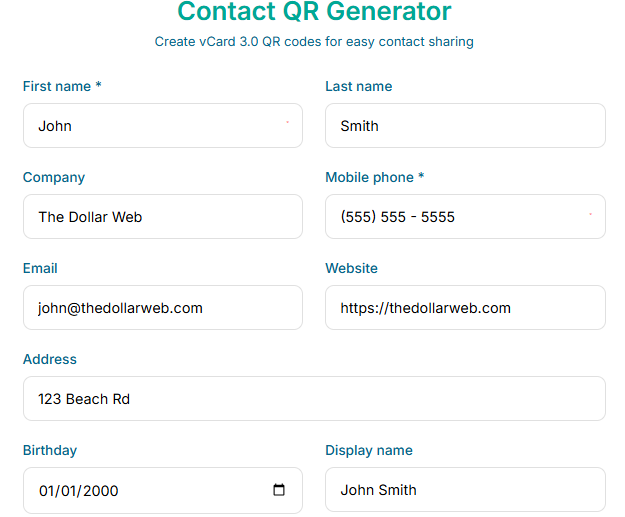
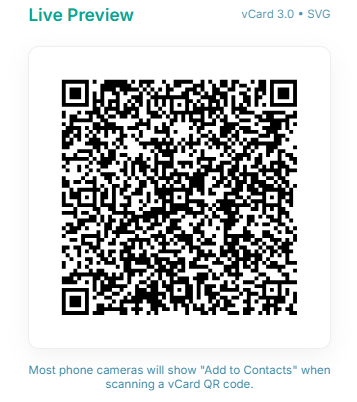
A vCard is just a digital business card. When someone scans the code, their phone shows your name, phone, email, and any other details you choose—and offers "Add to Contacts."
Try it: open the QR vCard Generator.
- Open the tool. It runs in your browser—no downloads needed.
- Enter your info. Name, phone, email, company, title—whatever you want to share.
- Click Generate. Your QR code appears instantly.
- Download & share. Add it to your email signature, website, resume, or keep the image on your phone for quick sharing in person.
Part 2: Share Your Wi-Fi with a QR Code
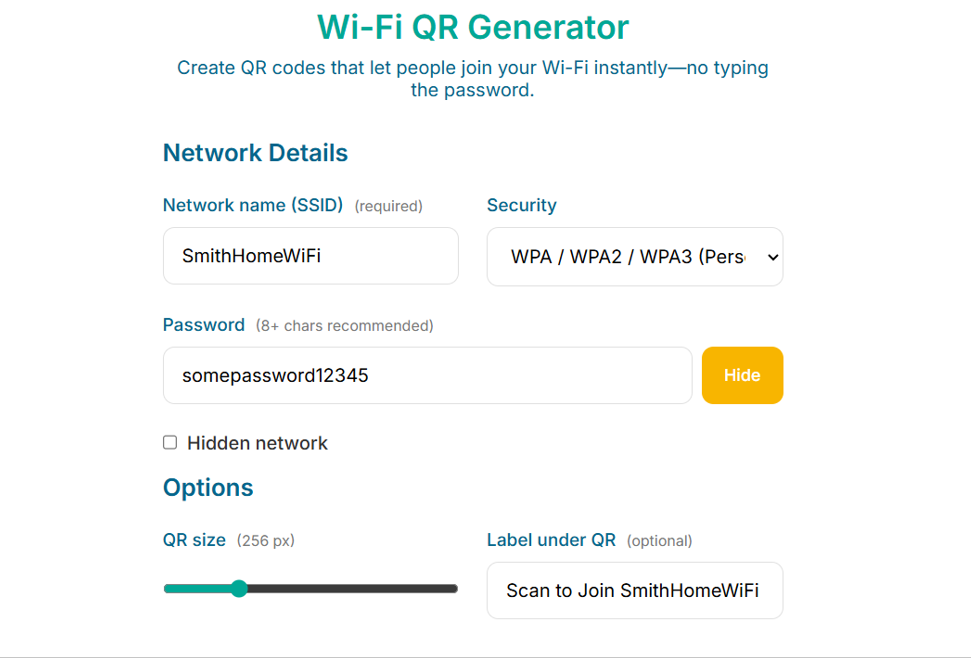
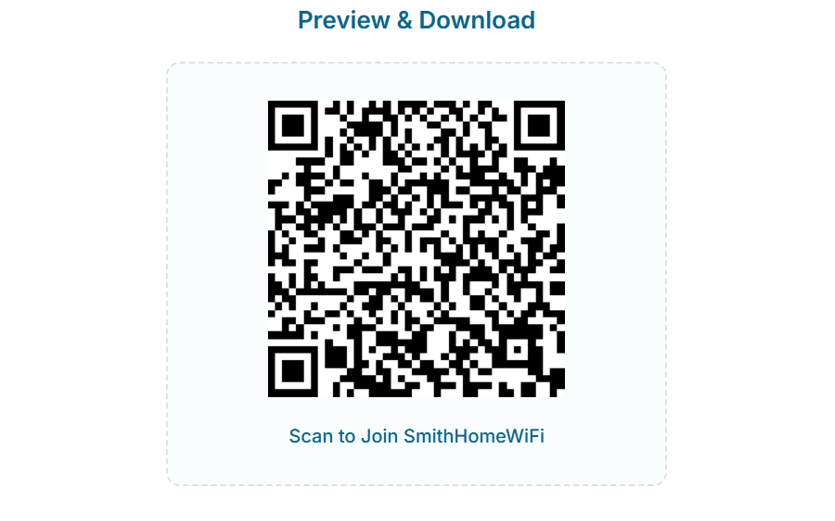
Wi-Fi passwords are a pain to type—especially with capitals and symbols. The Wi-Fi QR Generator fixes that. Guests scan and connect automatically.
- Open the tool.
- Enter your network name (SSID) and password. This stays private in your browser.
- Select security type. Most home networks use WPA/WPA2.
- Click Generate. Download, print, or save the code to your phone.
Why This Is Useful
- Fewer mistakes: No more mistyped emails or passwords.
- Faster sharing: People connect or add you in seconds.
- Professional look: Great for networking, events, Airbnb, or office lobbies.
- Private by design: The tools run in the browser—nothing is uploaded when creating your codes.
Quick Tips
- Print at high contrast. Black on white scans best.
- Give the code some breathing room. Leave white space around the edges.
- Test before sharing. Scan it with iOS and Android to be sure.
- Keep a copy on your phone. Easy to pull up anytime.
Wrap-Up
QR codes remove friction from everyday tasks. With The Dollar Web's vCard QR Generator and Wi-Fi QR Generator, sharing your contact info and network access takes seconds—no typing, no typos, just a quick scan.
QR Code is a registered trademark of DENSO WAVE Incorporated.
Try Our Free QR Code Generators
Ready to share your contact info and Wi-Fi password effortlessly? Use our tools to create professional QR codes in seconds.
vCard Generator Wi-Fi GeneratorCommon questions
How do I share my Wi-Fi password with a QR code?
Enter your network name and password into a Wi-Fi QR generator and print the code. Guests point their phone camera at it and get a one-tap join prompt, with nobody reading a password aloud character by character. Framed by the door, it answers the most-asked question in every home.
How do people save my contact info from a QR code?
A vCard QR code encodes your name, number, email, and company in the standard contact format. Scanning it opens the phone's add-contact screen with everything filled in, which beats hoping they type your email correctly at a noisy event.
Do these QR codes work on both iPhone and Android?
Yes. Both platforms' built-in cameras recognize Wi-Fi and contact QR codes natively, with no app to install on either end.
Do contact and Wi-Fi QR codes expire?
Static codes never expire: the information lives inside the printed code itself, not on a server that could lapse. If your password or phone number changes, you generate a fresh code, which takes about a minute.
Is it safe to put a Wi-Fi password or phone number in a QR code?
The code only reveals its contents to someone who can physically scan it, the same exposure as a printed password card or business card. Generate it with a client-side tool so the data is never sent to a server, and place it where guests, not passersby, can see it.