QR Code is a registered trademark of DENSO WAVE Incorporated.
If you're putting QR codes on flyers, postcards, menus, or event badges, you can measure which placements work best by adding UTM parameters to your URL before generating the code. This five-minute guide shows how to do it using The Dollar Web's QR Customizer.
What are UTMs (and why they matter)
UTM parameters are tags at the end of a URL that your analytics tool (e.g., GA4) uses to attribute traffic. When someone scans your QR code, the visit shows up with the source, medium, and campaign you defined.
utm_source— where the QR is placed (e.g.,flyer,postcard,table_tent)utm_medium— the channel (useqr)utm_campaign— the initiative (e.g.,grand_opening,fall_fundraiser_2025)utm_content(optional) — variant details (e.g.,front_desk,version_a)
Step-by-step: Build a trackable QR code with QR Customizer
-
Choose your destination page. Use the exact landing page you want scanners to reach (promo, RSVP, menu, signup). Ensure it's fast and mobile-friendly.
-
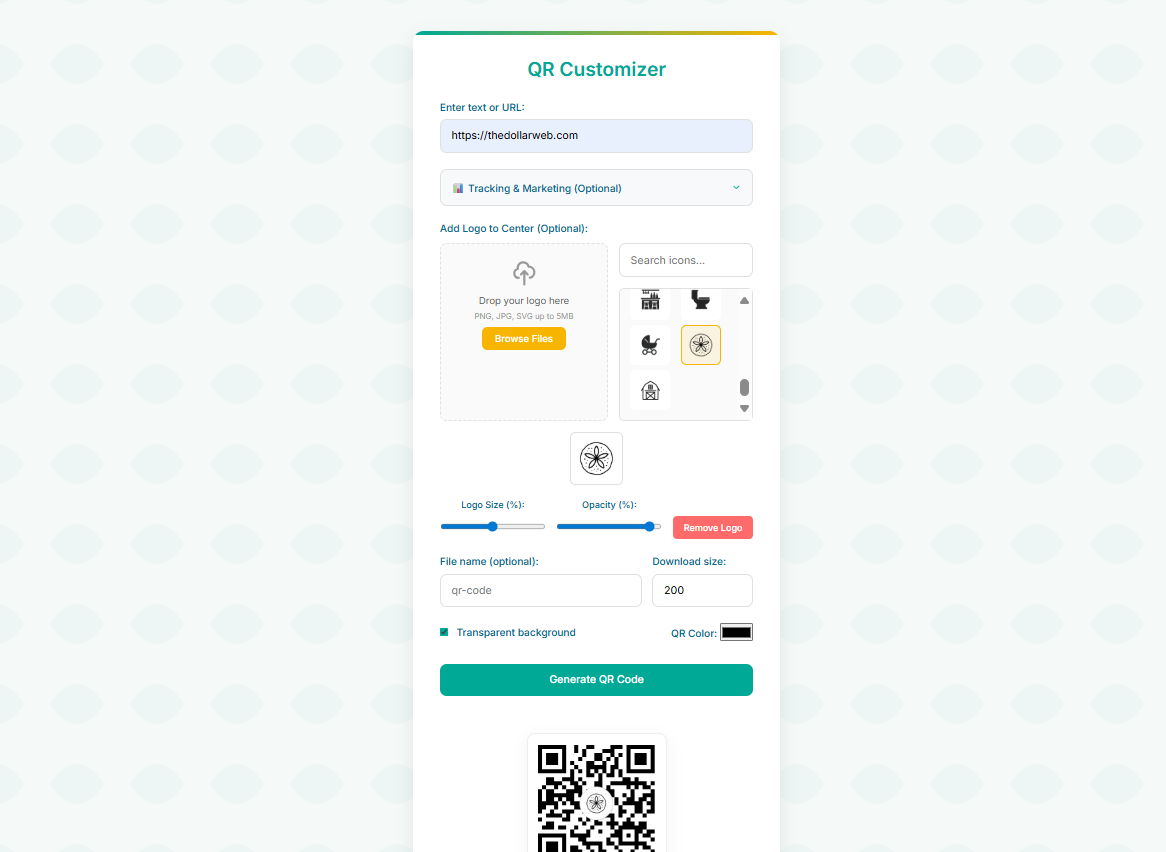
Open QR Customizer, paste your URL, and (optionally) add UTMs.
- Paste your base URL into Enter text or URL.
- Click 📊 Tracking & Marketing (Optional) to expand the UTM builder.
- Set UTM Source (dropdown with common placements; "custom" adds your own), UTM Medium is auto-filled to
qr, add UTM Campaign, and optional UTM Content. - Review the Final URL with tracking preview—the app builds the URL correctly whether or not your base link already has query parameters.
-
Style your QR (and mind scanability).
- QR Color — choose your brand color (keep high contrast against the background).
- Transparent background — enable for overlays; note that JPEG downloads can't be transparent.
- Add Logo to Center (Optional) — upload your logo or pick from the icon grid, then adjust Logo Size (%) and Opacity. (Tip: start around 20–25%.)
- File name and Download size — set a clean filename and choose output dimensions.
-
Generate, test, and download.
- Click Generate QR Code to render with your current settings.
- Test scans on at least two phones/camera apps.
- Download as PNG (supports transparency) or JPG (no transparency).
-
Place & proof. Keep a clean "quiet zone" around the code. For hand-held items, ~1–1.25″ squares scan reliably; go larger for posters.
Smart UTM naming (copy this scheme)
utm_source= the asset (e.g.,flyer,postcard,menu,banner,pew_card)utm_medium=qrutm_campaign= your initiative (fall_fundraiser_2025,grand_opening)utm_content= location/variant (front_desk,checkout_counter,version_a)
View results in GA4
- Reports → Acquisition → Traffic acquisition
- Switch primary dimension to Session source/medium or Session campaign
- Add secondary dimension Session manual ad content for
utm_content
Track sessions, engagement, and your key conversion events (e.g., signups, purchases) to see which placements work.
Common pitfalls (and quick fixes)
- Tiny codes: Increase physical size and contrast if scans fail.
- Busy backgrounds: Don't overlay on patterns; preserve a quiet zone.
- Inconsistent UTM casing: Use lowercase (
flyer≠Flyerin reports). - Broken links after exporting: Scan the final print/PDF before going live.
- Over-styling: On-brand colors are great—never sacrifice contrast.
- Oversized logos: If scanning is unreliable, reduce the Logo Size (%) in QR Customizer until cameras read the code instantly (20–25% is a safe starting point).
Pro Tip: Create different QR codes for the same destination with unique utm_content values to A/B test placement effectiveness. For example, use utm_content=front_counter vs utm_content=back_wall to see which location drives more engagement.
TL;DR
- Paste your URL into QR Customizer.
- Open Tracking & Marketing (Optional) to add UTMs and confirm the preview.
- Style your code (color, transparent background, optional center logo).
- Generate, test, and download PNG/JPG.
- Measure in GA4 and double-down on the placements that win.
Start Building Trackable QR Codes Today
Ready to measure which QR code placements work best? Use our QR Customizer with built-in UTM tracking to turn every scan into actionable insight.
Open QR CustomizerSources
- Google Analytics Help. "Campaign URL Builder and UTM parameters." Google Analytics Help
- DENSO WAVE. "QR Code trademark information." DENSO WAVE
- Google Analytics Help. "Traffic acquisition reports in GA4." Google Analytics Help
- Google Support. "Use Campaign URL Builder for custom campaigns." Google Support
- Buffer. "A Guide to UTM Parameters and Campaign Tracking." Buffer
Common questions
How do I track whether people scan my QR codes?
Encode a UTM-tagged URL in the code instead of a bare link. Every scan then arrives in Google Analytics labeled with its source, medium, and campaign, so the flyer, the poster, and the packaging each report their own results, without any paid QR tracking service.
What UTM parameters should I use for a QR campaign?
Set utm_source to where the code lives (flyer, poster, packaging), utm_medium to qr, and utm_campaign to the initiative (spring-sale). Consistency is the whole game: pick conventions once and every future report stays clean.
Why do my QR scans show up as direct traffic in analytics?
Because a bare URL in a QR code carries no referrer, analytics can only file those visits under direct. UTM parameters fix this exactly: the tag travels inside the link, so the visit arrives labeled no matter how it was opened.
Do I need a paid dynamic QR service to track scans?
No. Dynamic services track by routing scans through their servers, which adds a middleman, a subscription, and an expiry date to your printed codes. A static code with a UTM-tagged destination gives you the measurement in your own analytics, free, forever.
Where do UTM-tagged QR codes work best?
Anywhere print meets digital: flyers and posters, product packaging, table tents, direct mail, event signage, and business cards. Each placement gets its own tag, and the campaign report finally answers which of them actually pulls.